2022 graduate users who have registered and activated in the school's employment management system can directly authenticate with this account and password. (i.e.: the account password registered when verifying student source information)
2. Identity authentication
After graduates from colleges and universities in the province log in to the online office area for the first time, the system pops up the identity authentication interface, reminding students to complete the identity authentication first. Click the Certify Now button, and the five key information filled in by the student for registration will be checked against the province's student information database. If the verification is consistent, the certification will be passed.
3. Forgot password
Graduates who forget their password can retrieve it in two ways. One is to verify the account, and the other is to contact the administrator.
02 Signing method
There are two main ways for graduates to sign contracts with employers:
The first is online signing of agreements: graduates who sign contracts with employers in the province need to sign employment agreements online. Before signing a contract, the employer must meet the qualifications for online signing: ① Register in the Shandong College Graduate Employment Information Network system and pass the review; ② Operate normally.
Note: Some employers outside the province (registered with Shandong College Graduates Employment Information Network and qualified for online signing) can also sign agreements with graduates online.
If you have received a tripartite employment agreement and signed a contract with an employer in the province in the early stage, you need to sign a new online agreement.
The second is the entry agreement: Graduates and employers outside the province (not registered on the Shandong College Graduates Employment Information Network) use the entry agreement method.
If you have received a tripartite employment agreement and signed a contract with an employer outside the province in the early stage, you need to sign the contract again by entering the agreement.
(1) Online signing agreement process
1. Invitation from the employer to sign a contract. Employers in the province who are qualified for online visas inquire about the graduates they intend to hire and send them invitations to sign contracts.
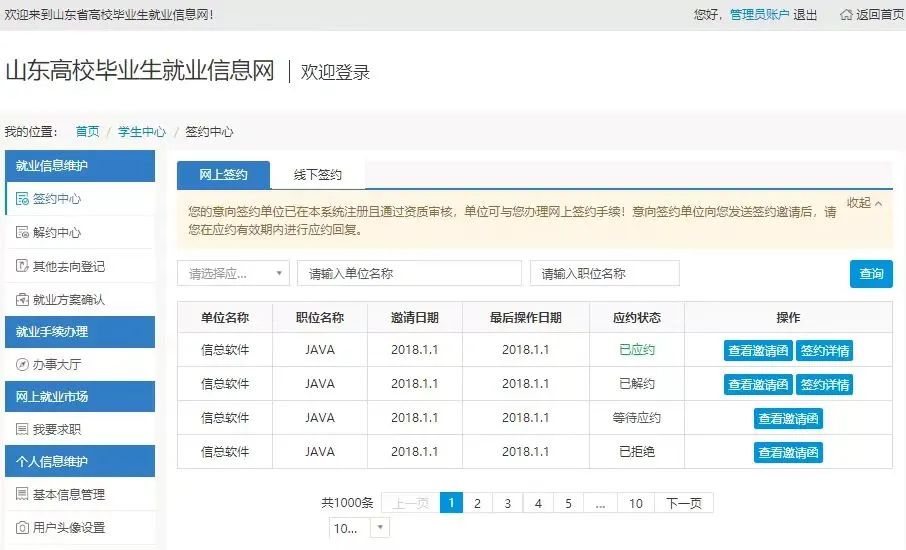
2. Check the invitation letter. After receiving the contract invitation from the employer, graduates should check the invitation content and respond. Replying to agree will generate an agreement, replying to reject will invalidate the invitation letter.
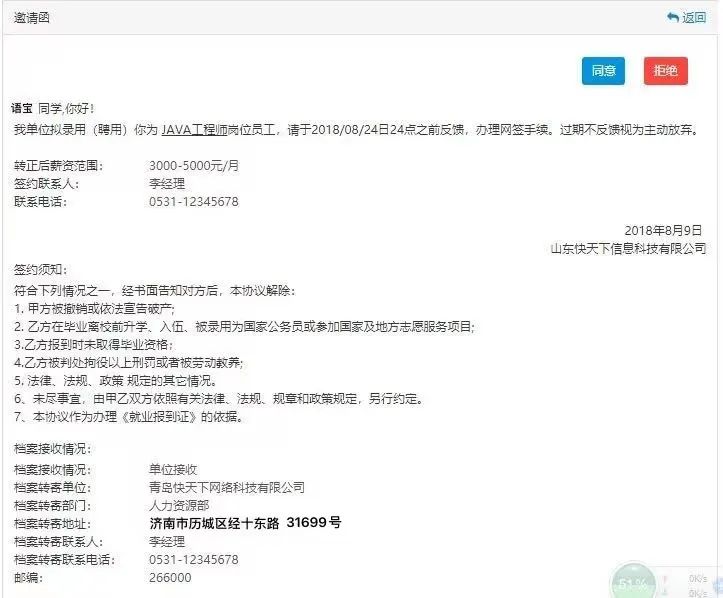
3. Students should generate an agreement upon appointment and send it for review. Those who sign contracts before graduates leave school will be reviewed by the graduating school, and those who sign contracts after leaving school will be reviewed by the human resources and social security department of the county where the employer is registered.
(2) Entry agreement process
1. Graduates log in to the Shandong College Graduates Employment Information Network, enter the page and select [Signing Center] —- [Offline Signing] —- [Enter Agreement]
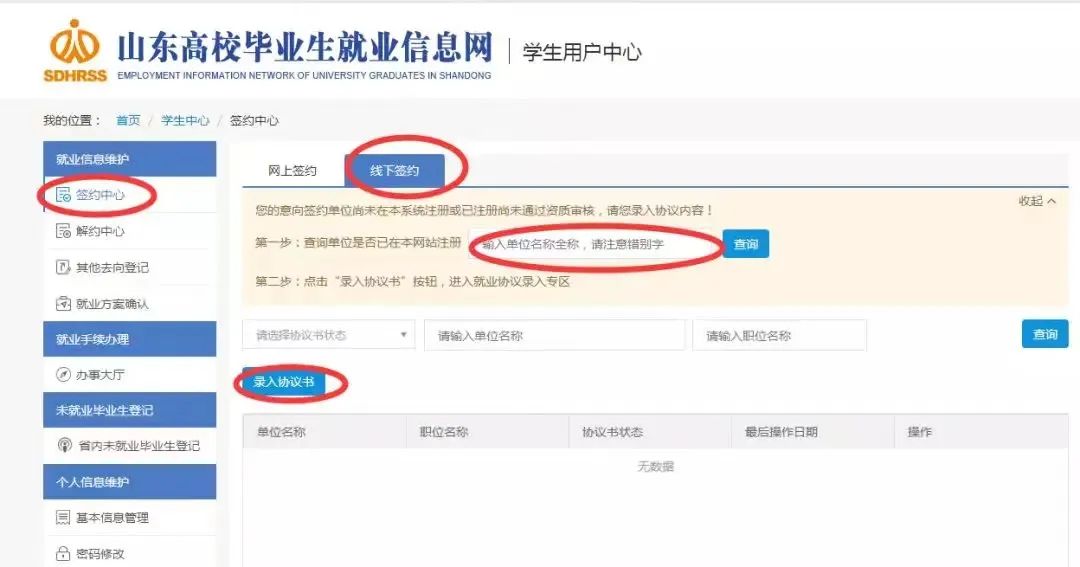
2. Enter the contracting information: Students enter the basic information of the contracting unit and file reception information as required. If there is any uncertain information, you can save it and not submit it for now. If you confirm that it is correct, you can save it and submit it for review. Submitting to the system will generate a valid agreement. If the agreement is terminated, the student must submit the agreement and must obtain the consent of the school before the agreement can be terminated.
3. Students should generate an agreement upon appointment and send it for review. Those who sign contracts before graduates leave school will be reviewed by the graduating school, and those who sign contracts after leaving school will be reviewed by the human resources and social security department of the county where the employer is registered.
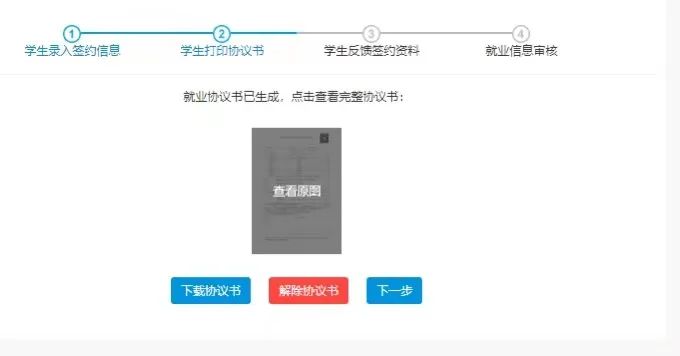
4. Feedback on signing materials: Upload the scanned copy of the paper agreement and submit it for review.
03 Registration of other graduation destination information
(Labor contract employment, flexible employment, further education, going abroad, self-employment, enlistment in the army and grassroots project employment)
1. Labor contract employment registration
Operation instructions: If students are employed by signing a contract with the unit, they should choose the labor contract employment type, fill in the labor contract employment information as required on the interface and upload supporting materials. If you are unsure about the information, you can save it and not submit it for now. If you confirm that the information is correct, you can save it and submit it for review, or you can cancel this operation. Go back and choose your employment destination again.
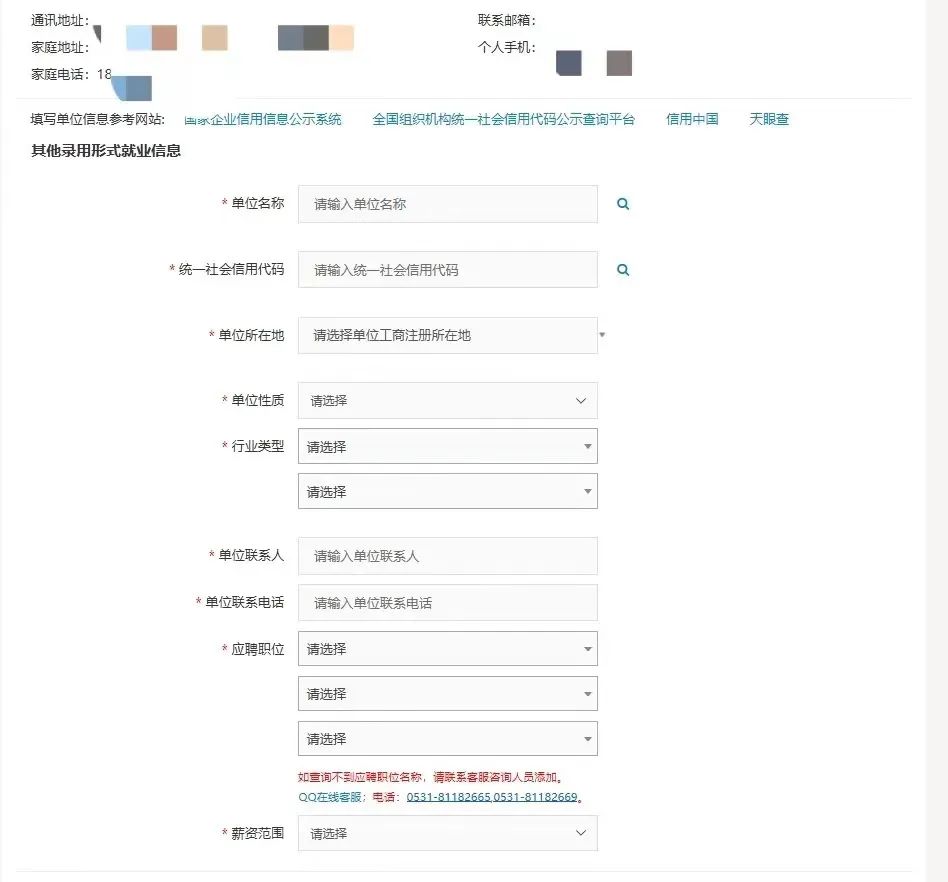
2. Other forms of employment registration
Operation instructions: If students are employed with other employment forms of the unit, select other employment form types, fill in the other employment form information as required on the interface and upload supporting materials. If you are unsure about the information, you can save it and not submit it for now. If you confirm that the information is correct, you can save it and submit it for review, or you can cancel this operation. Go back and choose your employment destination again.
3. Registration for further studies
Operation instructions: If students want to enter a higher education, they should choose the type of further education, fill in the information for further education as required on the interface and upload supporting materials. If you are unsure about the information, you can save it and not submit it for now. If you confirm that the information is correct, you can save it and submit it for review, or you can cancel this operation. Go back and choose your employment destination again.
Instructions for filling in: Fill in the fields for graduates with various academic qualifications. You need to choose the content according to your academic qualifications.
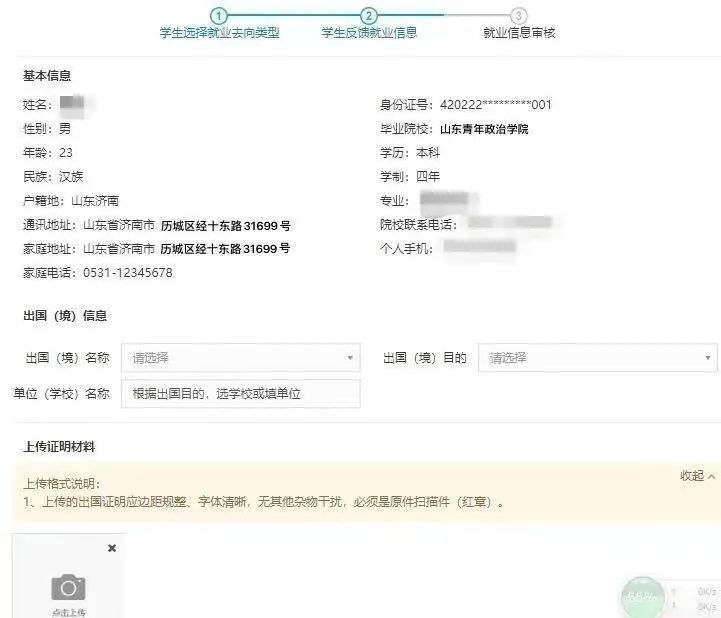
4. Registration abroad
Operation instructions: If students are going abroad, choose the type of going abroad, fill in the going abroad information as required on the interface and upload supporting materials. If you are unsure about the information, you can save it and not submit it for now. If you confirm that the information is correct, you can save it and submit it for review. You can also cancel this operation and go back to choose your employment destination again.
Instructions for filling in: Going abroad includes working abroad and studying abroad. Select the country and the name of the employment unit or the school for further study according to the category.
5. Registration of self-employment
Operation instructions: If students start their own business, they should choose the type of self-employment, fill in the self-employment information as required on the interface and upload supporting materials. If you are unsure about the information, you can save it and not submit it for now. If you confirm that the information is correct, you can save it and submit it for review, or you can cancel this operation. Go back and choose your employment destination again.
6. Registration for military enlistment
Operation instructions: If a student signs up to be drafted into the military, he or she must select the draft type and upload supporting materials on the interface. If you are unsure about the information, you can save it and not submit it for now. If you confirm that the information is correct, you can save it and submit it for review, or you can cancel this operation. Go back and choose your employment destination again.
7. Grassroots project registration
Operation instructions: If students participate in national or local grassroots projects, select the grassroots project type and fill in the grassroots project information as required on the interface. If you are unsure about the information, you can save it and not submit it for now. If you confirm that the information is correct, you can save it and submit it for review, or you can cancel this operation. Go back and choose your employment destination again.
04 Termination process
If graduates have signed the agreement online, entered the agreement and registered other destinations, they need to go through the procedures to terminate the agreement or change their employment information. The specific operation method is as follows:
1. Cancellation of online signing agreement
(1) The student submits a termination application: The student selects the type of termination, fills in the reason for termination, sends it to the unit, and waits for the unit's response.
(2) The unit submits an application for termination: The student receives the unit's termination notice and agrees to reply to complete the termination. If the student cancels, the agreement will continue to be valid.
2. Cancellation of entry agreement
After the agreement comes into effect, the student must fill in the reasons for termination, upload the certificate of termination and submit an application for termination, and wait for the school's review results. If the review is passed, the agreement will be terminated. If the review is not passed, the agreement will still be valid.
3. Termination of other destination agreements
(1) After graduates register their destination information, if the school does not review it, it will be canceled automatically through the function.
(2) After the graduates register their destination information, if the school approves it, they will send it to the school for review through the "Application to Release Current Employment Destiny" function, and the destination information will be released if they pass the review; if the school fails the review, the destination information will still be valid.
I believe that by reading the above content
Graduates of the Class of 2022
Already familiar with the process of using the employment information network guide
hope everyone
You can find a job that suits you
Realize your ideals