Guest author – Taoist priest
In "Four major precautions in the seventeen different states of the App!" | Collection Level Part 1" (click "Read the original text" at the end of the article to view), we have taken stock of all the states of the App and sorted out the operating procedures and precautions in some common states. Today we will add the remaining states. At the same time, Qimai Research Institute has sorted out the App state corresponding process, so developers can check the actual conditions of their own Apps accordingly.
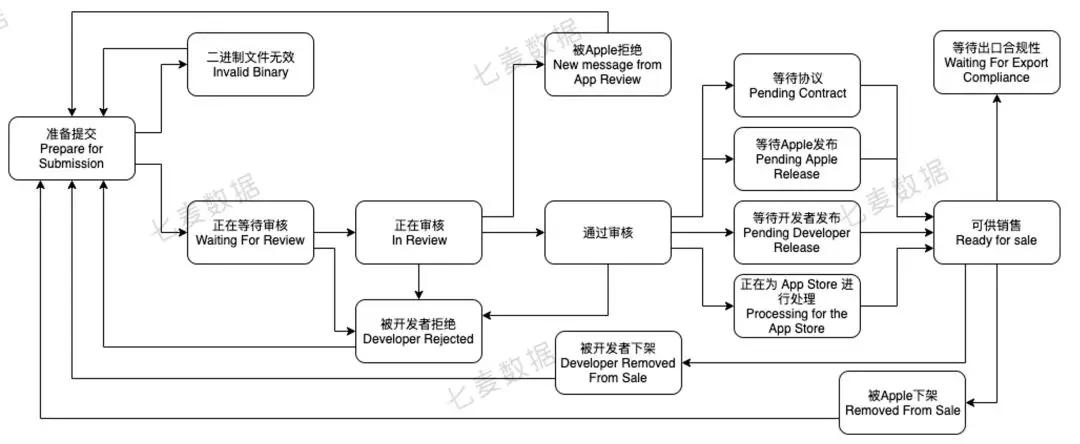
Because after passing the review, it is divided into "automatic release" and "manual release", for the convenience of presentation, the status of "waiting for agreement", "waiting for Apple release" and other states are concentrated after "passing review" in the flow chart.
Common status operation procedures and precautions
Developer Removed From Sale
The "Removed by Developer" status text generally appears after the App enters the "Available for Sale" stage.
steps involved
1. Cancel the sale status in all regions in the "App Information" area, or click "Remove".
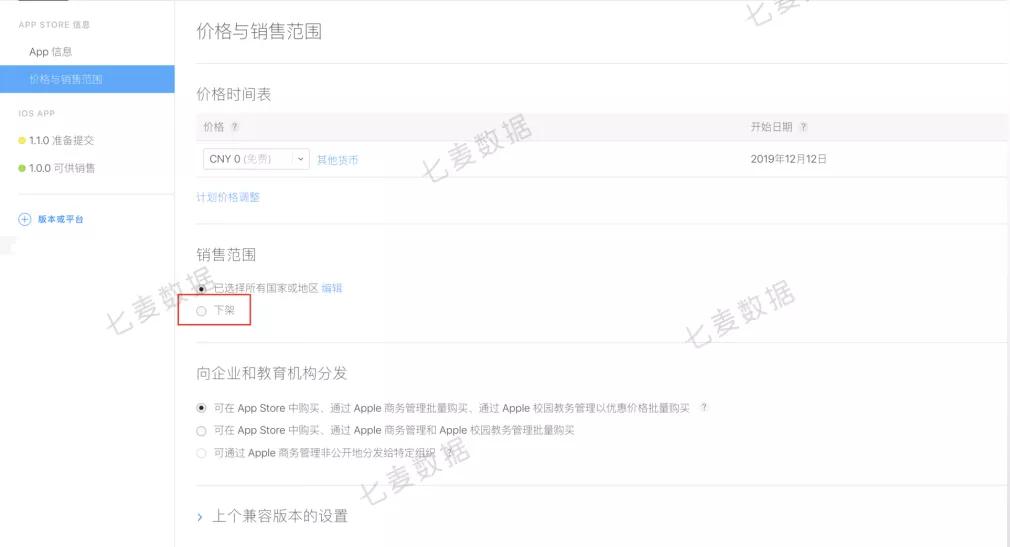
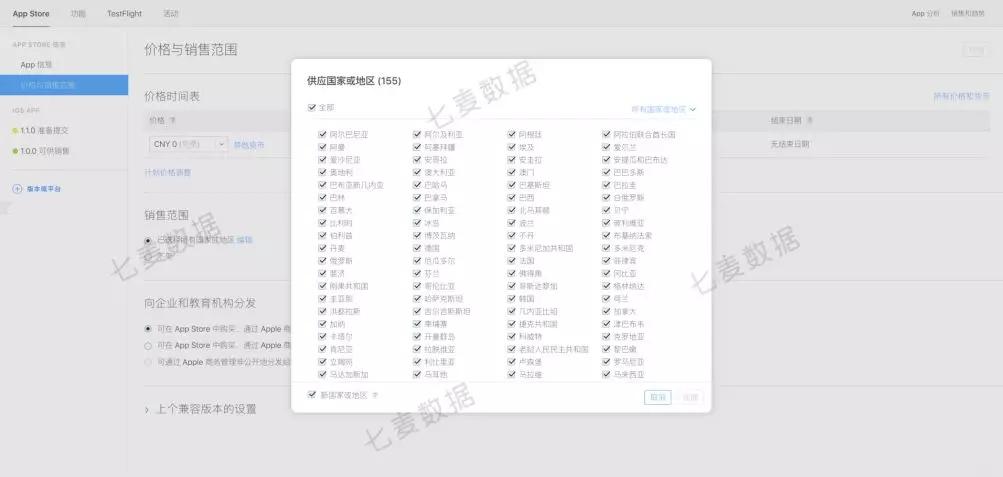
2. Operate the App alone to remove it from the shelves in one or several countries and regions.
Note 1
1. For apps that have been "removed from the shelves" by the developer, the developer can re-list the product at any time.
2. When the App status changes, you will receive the corresponding notification content in the email. The screenshot below is the screenshot content received after being "removed by the developer".
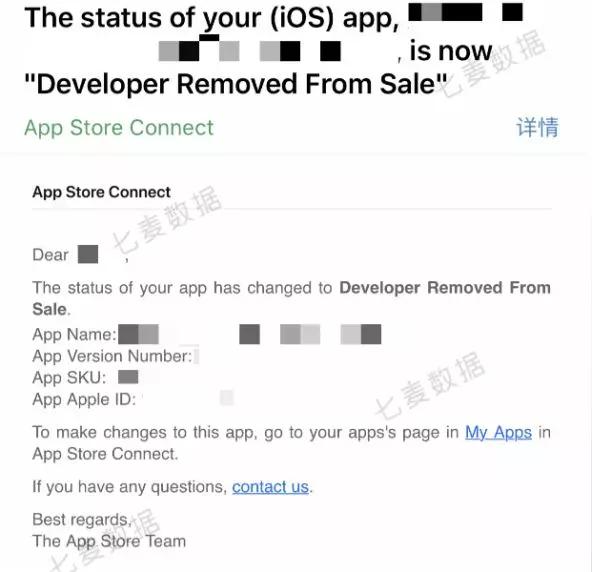
Removed From Sale
The difference between "removed from the shelves" here and "removed from the shelves by developers" is that products "removed from the shelves by developers" can be re-listed at any time during iTC operations, while "removed from the shelves" require re-submission of information for review or communication, and may no longer be allowed to be put on the shelves.
steps involved
1. After the removed product is removed from the shelves, the email address of the account holder to whom the App belongs and the account holder bound to receive App status notifications will receive a notification.
2. The status of the App will be changed to the text "Removed", and the explanation of the reason for being removed and the terms violated will also be pushed in the "iOS Version" – "Solution Center".


Note 2
1. Products that have been removed from the shelves cannot be directly put on the shelves and need to submit a new version for review, and the new version review will encounter a certain delay in review.
2. The account owned by the App after being removed from the shelves may be marked, and there is a certain probability that the account will be banned by Apple.
Rejected (New message from App Review)
The "Rejected" status generally appears after the App enters the "Under Review" status. After Apple's review, it is found that the product experience or functions in the App do not meet the specifications, or the App metadata does not meet the specifications. If the App is rejected through review, "Rejected by the App" is further divided into "Metadata Rejected" or "Binary Folder Rejected".
Note 3
1. The difference between "rejected" and "rejected by the developer" here is that "rejected" is rejected by Apple. If you want to re-enter the review, you must modify the areas where Apple raised questions and meet Apple standards. Only then can you pass the review.
2. "Rejected by the developer" generally means rejection after review or rejection after review. Rejection after review can be resubmitted immediately. Before the problem is pointed out by Apple, it can enter the review status normally and pass the review. If there are problems, it will enter the "rejected" status;
3. Rejection after passing review generally means that the developer is not satisfied with the currently reviewed version, or finds that there are problems with the version, so he can reject this version and resubmit it for review. When the resubmission enters "Waiting for Review" or "Under Review", the developer can also initiate the "Rejected by Developer" operation. If it is rejected by Apple after entering "Under Review", it will enter the "Rejected by Apple" state.
Metadata Rejected
The "Metadata Rejected" status generally appears after the App is submitted for review and enters "Under Review". If the metadata of the App reviewed by Apple does not meet the requirements, the App review will be rejected and the "Metadata Rejected" status will be returned.
Note 4
1. If metadata is rejected, you generally only need to modify the relevant content of the metadata. There is no need to resubmit for review. Just reply to Apple in "iOS Version" – "Solution Center".
2. Corresponding to "Metadata Rejected" is "Binary File Rejected". The latter is generally a significant bug in the App, or content or functions that do not meet the requirements. If the App content is modified and the build version is re-uploaded, you need to re-submit for review after selecting the latest build version. If the build version is not re-uploaded, you can reply to Apple in "iOS Version" – "Solution Center".
3. In recent years, when Apple rejects Apps, they no longer differentiate between "Metadata Rejected" and "Binary File Rejected", but have changed them to "Binary Folder Rejected". Therefore, when encountering the "Rejected" status, you should understand the reason for rejection clearly and correct it before resubmitting or replying to solve the problem.
Developer Rejected
The "Rejected by Developer" status generally appears when the App is submitted for review and enters "Waiting for Review" or "Under Review" before rejecting the currently submitted version for review, or after the App passes review and rejects the currently approved version.
For apps that some developers no longer want to operate, they can select the "Remove App" button at the bottom of the App's "App Information" page.

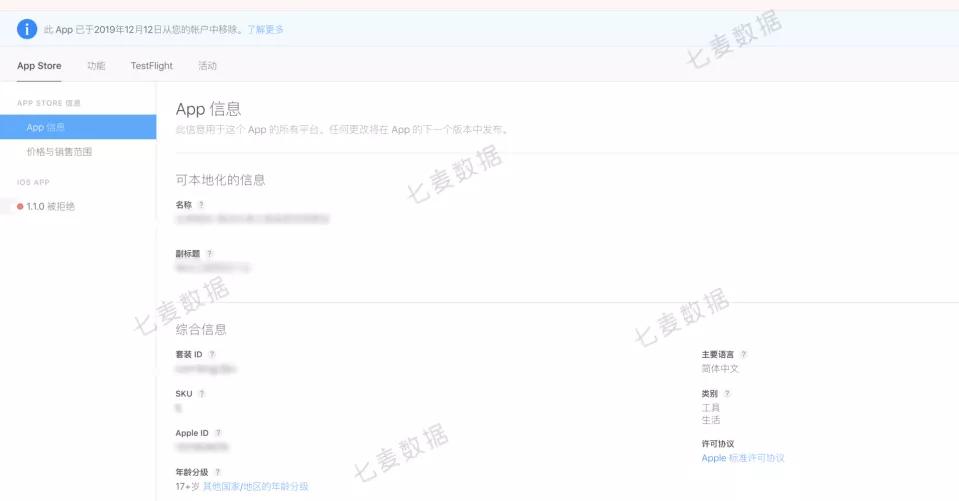
For "Removed" Apps, there will be a separate category to display the content of the "App". If the App's status is "Available for Sale" or "Removed by Apple" and no new version has been added, and when the App's status is "Removed", "App
The "Information" interface will display the locked status in the content section.
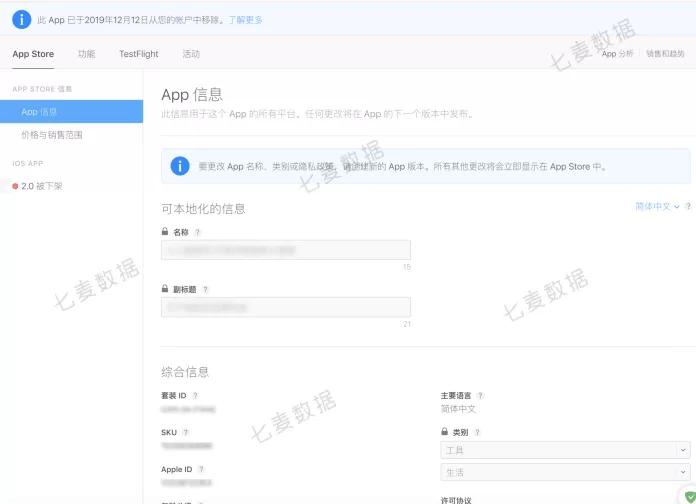
If the App has not been online and is currently in the "Removed" state, the "App Information" interface will not display a content box in the content section.
write at the end
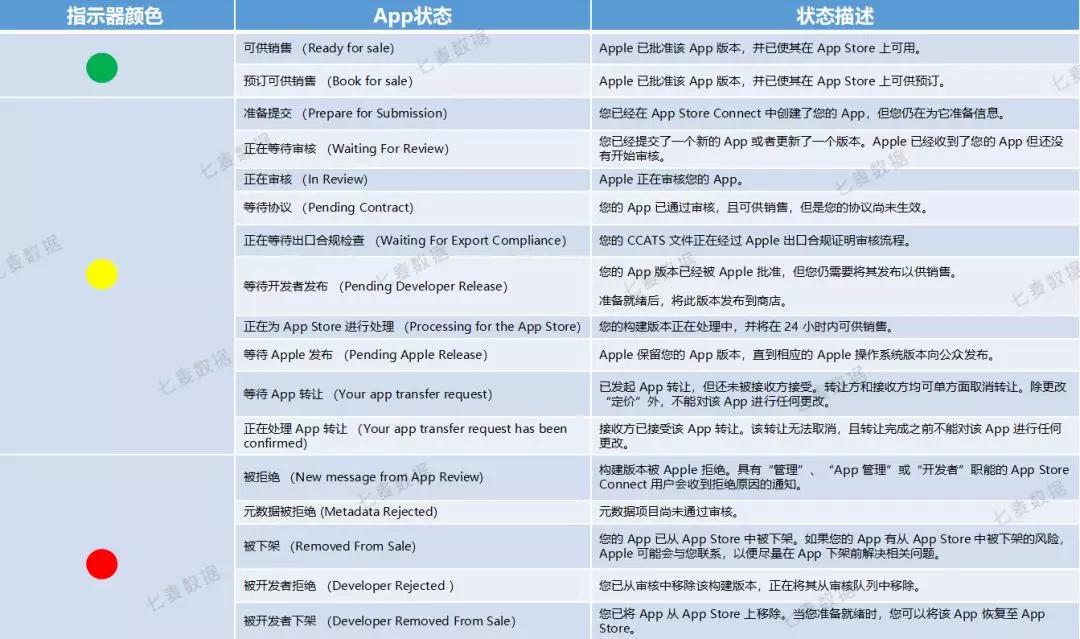
In the App Store Connect backend, in order to allow developers to understand the status of their apps more clearly and intuitively, Apple uses indicators in three colors: red, yellow, and green.