1. After using Linux for many years, you may have been using the wrong package manager.
Everyone who plays Debian Linux cannot escape the apt command in the terminal. sudo apt install xxx, sudo apt remove xxx, these instructions are like required introductory courses, accompanying countless people from Linux novices to advanced users. It is undeniable that the apt command is simple and efficient, and can meet the needs of most software installation and uninstallation. It is one of the core tools of the Linux system.
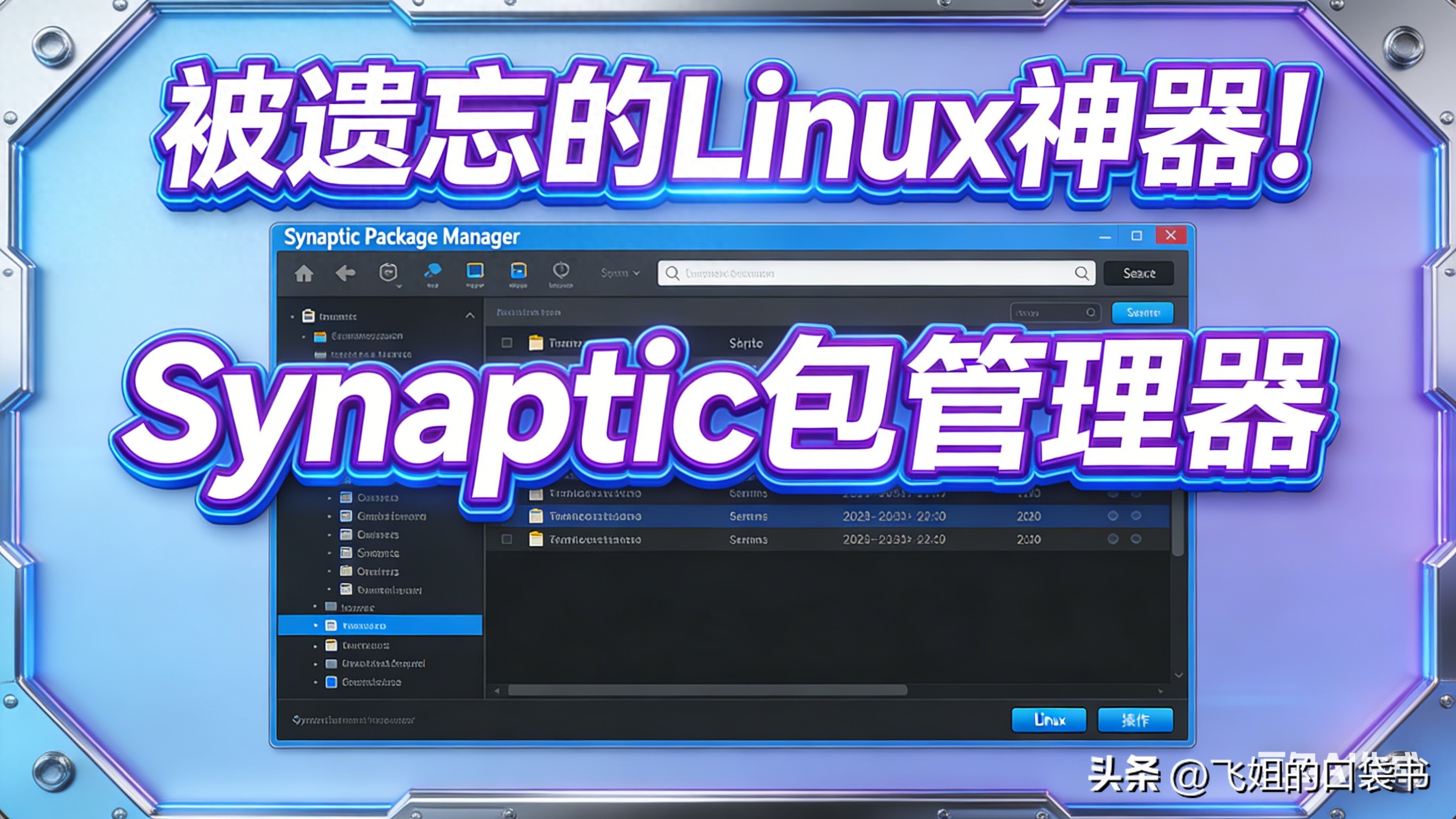
But few people know that there is a tool that can maximize the functions of apt and solve all the pain points of apt – it can visually manage all software packages, repair dependency errors with one click, completely delete software residues, and even lock software versions to avoid accidental updates. It is Synaptic Package Manager, an artifact that was once the default graphical package manager for Debian Linux, but is now forgotten by most people.
Many people insist on using the terminal to type commands, thinking that this is the embodiment of "understanding Linux", but ignore the time and energy this tool can save; some people are attracted by the gorgeous interface of the modern software center and have no idea of the strength of this "old antique". Why bother with terminal commands when you can solve the problem with one click? You can clearly see the status of all packages in the system, so why do you have to guess around in the limited feedback from apt?
Detailed explanation of key technologies: Free and open source, superior to similar tools
Synaptic is a graphical front-end tool based on the APT package management system. It is specially designed for Debian Linux distributions, including Ubuntu, Kali, Linux Mint, Parrot OS, etc. It can be perfectly adapted. Its biggest advantage is that it is "open source and free". There are no advertisements or paid functions in the whole process. Anyone can download, use and modify its source code for free.
As a classic open source tool, Synaptic has high popularity on GitHub, with thousands of stars. It has accumulated maintenance and optimization by countless developers around the world, and its stability and compatibility have been tested by the market for more than 20 years. It does not pursue a gorgeous interface, but takes "practicality" to the extreme. All functions that apt can achieve can be completed through graphical operations. It also adds visual management and control capabilities that apt does not have, making complex package management simple and easy to understand.
2. Core dismantling: Complete Synaptic in one article, even novices can get started
The power of Synaptic lies in the fact that it can not only meet the "visual operation" needs of novices, but also take into account the "fine management and control" needs of advanced users, transforming complex package management logic into simple mouse click operations. The following will explain the core functions of Synaptic thoroughly from four aspects: definition, installation, use, and practical skills. You can easily master it by following the operation.
What is Synaptic Package Manager
Synaptic is essentially a "graphical shell" for APT. It does not change the core working logic of APT, but solves the "unintuitive" problem of APT terminal operations. Different from the simple application store that comes with Linux, it can display all software packages in the system – including underlying libraries and dependent components, not just the "applications" we usually see.
The core functions it can implement include: installing software, completely deleting software, repairing damaged dependencies, locking software versions, viewing software details, and visually browsing all software packages. Whether you are a security researcher, developer, or a novice who wants to intuitively control the system, you can use its core value.
How to install Synaptic (steps + code)
Synaptic supports all Debian Linux distributions. The installation steps are simple. The whole process only requires two terminal commands. Novices can easily complete it. The specific operations are as follows:
# 第一步:更新系统软件包缓存(确保能下载到最新版本的Synaptic)
sudo apt update
# 第二步:安装Synaptic包管理器
sudo apt install synaptic
After the installation is complete, there are two startup methods:
1. Terminal startup: Enter the following command. Note that root privileges must be used, otherwise all functions will not be able to operate normally.
sudo synaptic2. Graphical startup: Open the system application menu, search for "Synaptic", and click the icon to start (you will be prompted to enter a password to obtain root permissions during startup).
Synaptic step-by-step tutorial (a must-read for newbies)
Synaptic's interface is simple and clear. The core operation only has three steps: "Search-Mark-Apply". Taking the installation of nmap software as an example, the detailed steps are as follows:
Step 1: Search for packages
After opening Synaptic, click the "Search" button on the top toolbar, enter the software package name (such as nmap) in the pop-up search box, and click "Search" again. The system will automatically filter out all nmap-related software packages.
Step 2: Mark for installation
In the search results, find the software package that needs to be installed (usually the item whose name exactly matches the search keyword), right-click the software package and select "Mark for Installation". A dependency prompt will pop up. Click "Mark" to confirm the installation of the required dependency packages.
Step 3: Apply changes
After the marking is completed, click the "Apply" button on the top toolbar. In the pop-up confirmation window, click "Apply" again. The system will automatically start installing the software and related dependencies. Wait for the progress bar to complete and the installation will be successful.
Synaptic Practical Tips (Essential for Improving Efficiency)
In addition to basic installation and uninstallation, Synaptic also has three super practical tips that can solve the common pain points of Linux users. It is recommended to collect them:
Tip 1: Filter packages by status
On the left panel of Synaptic, there are four commonly used filtering options: installed, upgradeable, not installed, and damaged. Click the corresponding option to quickly filter out the software packages in the corresponding status, which is suitable for system auditing and cleaning up useless software.
Tip 2: View detailed properties of the software package
Double-click any software package, and a properties window will pop up, which contains detailed information such as software description, installed files, dependencies, maintainers, versions, etc. It can not only help novices understand the software functions, but also allow advanced users to troubleshoot dependency issues.
Tip 3: Clean up residual configuration files
After using apt remove to delete software, configuration files are often left behind, and long-term accumulation will occupy system space. Select "Installed (residual configuration)" in the filter bar on the left side of Synaptic, right-click the corresponding software package, select "Mark for Complete Removal", and click "Apply" to completely remove the software and all remaining configurations.
3. Dialectical analysis: Although Synaptic is powerful, it is not suitable for everyone.
It is undeniable that Synaptic is a powerful package management tool. It solves the pain points of unintuitive APT terminal operation, troublesome dependency repair, and incomplete software deletion, making Linux package management simpler and more transparent. For users who need a refined management and control system, its value is irreplaceable and can even increase work efficiency several times.
But Synaptic also has its own limitations, and not all Linux users need it. Its interface is relatively old and does not have the thumbnails, ratings, comments and other functions of modern software centers. For novices who only need to occasionally install a few commonly used software, it may feel "too complicated"; and its running speed is slightly slower than APT terminal commands. For advanced users who pursue ultimate efficiency and are familiar with terminal operations, APT may still be the first choice.
What’s more worth thinking about is that Synaptic’s “decline” was not due to its own lack of strength, but the inevitable development of the times. With the rise of modern graphical package managers such as GNOME "Software" and KDE "Discover", they have occupied the mainstream market with their more beautiful interfaces and simpler operations. However, Synaptic was gradually forgotten because it did not update the interface in time to adapt to new user habits. But this does not mean that its functions are lagging behind. On the contrary, in many scenarios, its practicality still exceeds that of modern software centers – such as locking software versions and fixing dependency errors. These functions are still difficult to achieve in modern software centers.
So the question is, for Linux users, should they choose Synaptic or APT? Should we stick to the efficiency of terminal commands, or embrace the convenience of graphical tools? In fact, the answer is simple: what suits you is the best.
4. Practical significance: The forgotten artifact still has irreplaceable value
In today's Linux ecosystem, although Synaptic is no longer mainstream, it still has irreplaceable practical significance, especially for certain groups of people, its value is even irreplaceable.
For security researchers and penetration testers, Synaptic can help them quickly manage a large number of tool kits, lock tool versions to avoid functional abnormalities caused by upgrades, completely delete useless tools and residual configurations, and keep the system clean and stable. This is crucial for people who rely on Kali and Parrot OS for work.
For developers, Synaptic can visually display the dependencies of software, help them troubleshoot dependency conflicts during the development process, view the installation path and detailed information of the software, save time in troubleshooting, and improve development efficiency.
For those new to Linux, Synaptic is an excellent tool for understanding the logic of system package management. Through the visual interface, novices can clearly see the entire process of software installation and uninstallation, understand the importance of dependencies, and gradually understand the underlying structure of the Linux system, laying the foundation for subsequent learning of terminal operations. Compared with directly memorizing apt commands by rote, this "visual learning" method is more efficient and easier to understand.
What is even more impressive is that Synaptic, as a classic tool for more than 20 years, has always insisted on being open source and free, without any commercial elements, and silently contributes to the Linux ecosystem. It does not pursue traffic and popularity, but uses its strength to prove that "practicality is the last word." This original intention is particularly valuable in today's software market that pursues appearance and traffic.
Its decline reminds us: the success of a software requires not only powerful functions, but also the need to keep up with changes in user habits; but the value of a software will not disappear because the popularity subsides. As long as users need it, it still has the meaning of existence.
5. Interactive topic: Have you used Synaptic? Tell me about your Linux package management experience
Seeing this, I believe many Linux users will suddenly realize that there is such a useful package management tool, and they have been using apt in vain for so many years; some old users will also sigh: Someone finally mentioned Synaptic, which was my main tool back then.
In fact, this is the charm of Linux – there are countless classic tools like Synaptic, which are not ostentatious or fancy, but can solve practical problems. Maybe you have been typing apt commands in the terminal, maybe you have given up on Synaptic a long time ago, or maybe this is the first time you have heard of this tool.
Let’s chat in the comment area: Have you ever used Synaptic package manager? What useful tips have you encountered while using it? Do you usually prefer to use apt terminal or graphical package manager? What do you think is the fundamental reason why Synaptic has been forgotten?