Usage of Polygon command:
After entering the Polygon command in the command bar, set the number of sides of the polygon, then specify the center point of the polygon and enter the radius of the polygon. Select the desired handover mode. That's it.
Definition and usage:
The polygon polygon command creates an equilateral closed polyline. You can specify various parameters of the polygon, including the number of sides. It shows the difference between inscribed and circumscribed options. You can also create polygon segments using edges.

Polygon command usage examples:
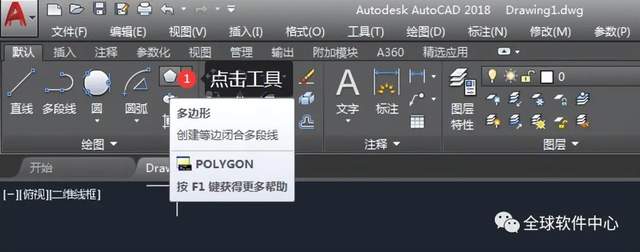
1. Open the CAD2018 software, click the polygon tool on the drawing panel, or enter the POLYGON command, or enter the abbreviation POL command.
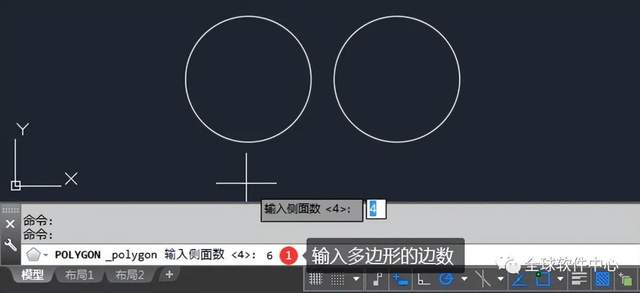
2. POLYGON input the number of sides. That is the number of sides of the polygon. Space for next step.
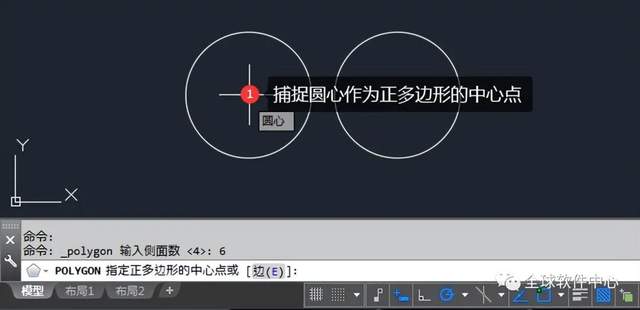
3. POLYGON specifies the center point of the regular polygon, and can capture the center point of the circle as the reference center point. Go to the next step.
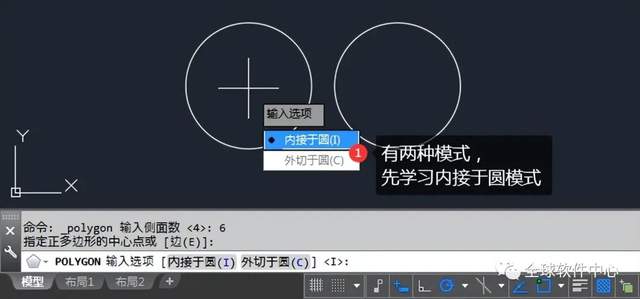
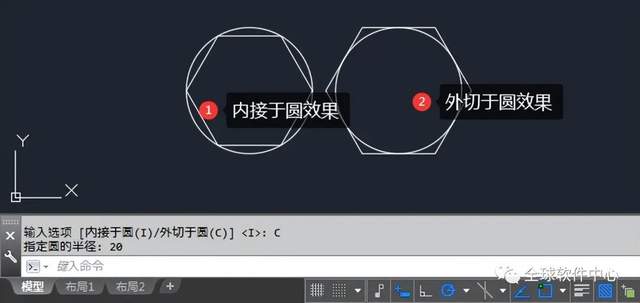
4. POLYGON input options. There are two modes: inscribed in a circle and circumscribed in a circle. Select Inscribed in Circle to proceed to the next step.
5. POLYGON specifies the radius of the circle, which is inscribed in the circle radius. The parameters here are referenced to the radius of the circle 20. The space is complete.
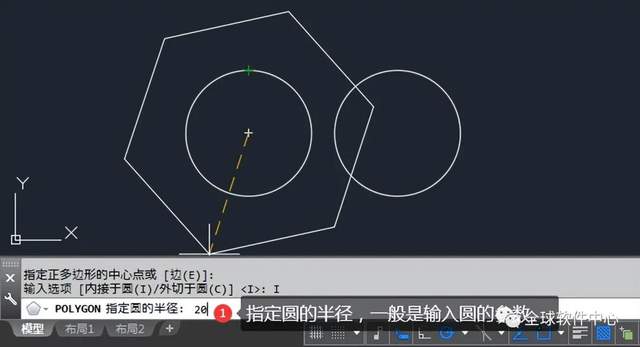
6. In the same way, enter the POLYGON command and enter the number of sides as 6. The effect is as follows:
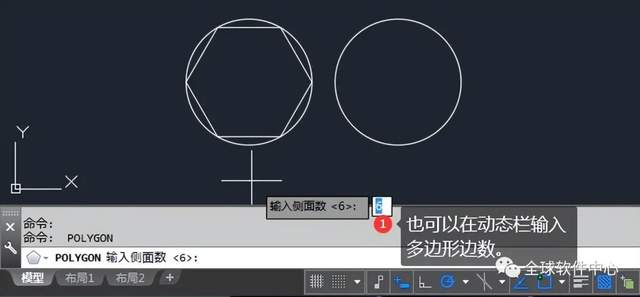
7. Also capture the center point of the circle as the center point of the polygon side. Go to the next step.
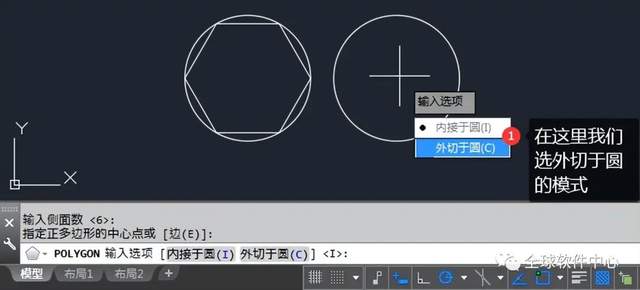
8. Enter the options, here select circumscribed in the circle as the reference mode. You can also enter C space to proceed to the next step.
9. Enter the radius parameter of the circle circumscribed to the circle. For example, if the radius of the circle is 20, leave a space to enter the next step.
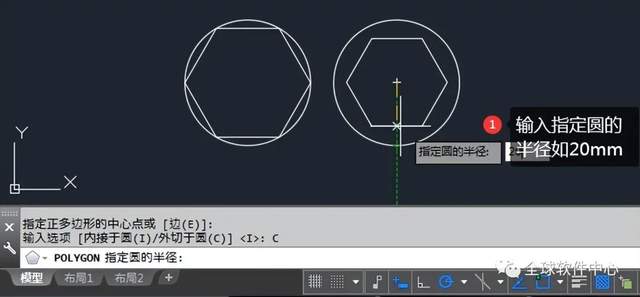
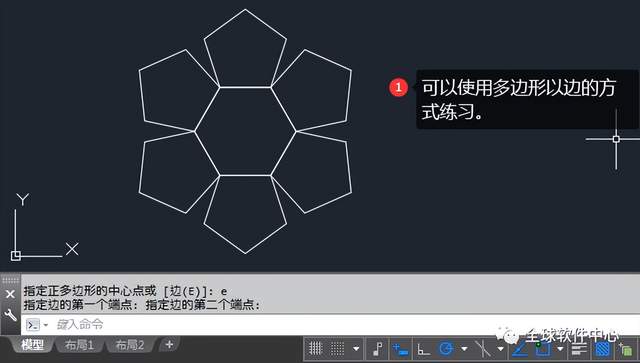
10. In this way, we can distinguish the effects of being inscribed in a circle and circumscribed in a circle.
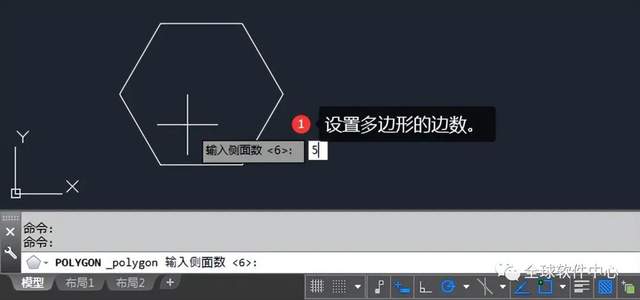
11. Another way to learn is to set the number of polygon sides.
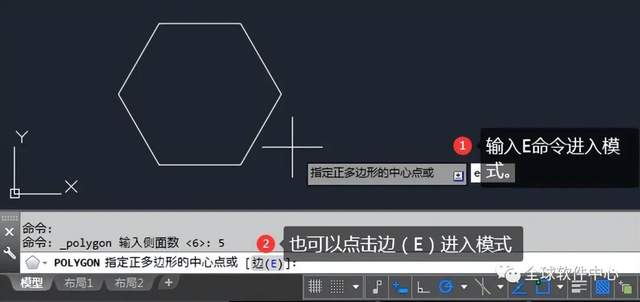
12. Click the edge (E) or enter E to enter the edge drawing mode.
13. Click on the first and second endpoints of the polygon. That's it.
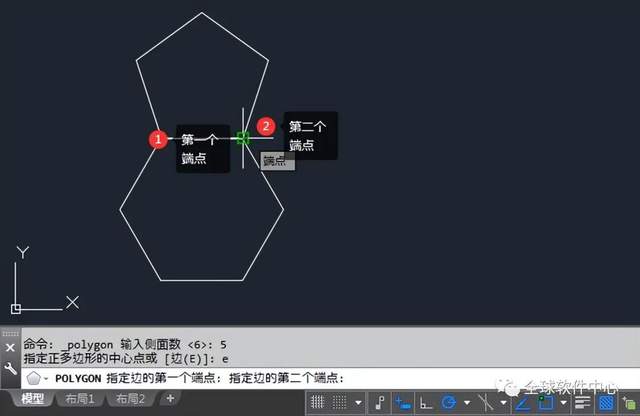
14. You can use this method to complete the following graphics.